Projects Builder Warranty / Captive Insurance
Turning Builder Warranty Claims Into a System Contractors Can Trust
Contractors Capital is Preservation Services' captive insurance portal for home builders. It replaces phone calls and email threads with one place to onboard a company, verify identity, track coverage, and file and resolve warranty claims.
- Company
- Preservation Services
- Timeline
- 2024
- Role
- Product Designer
- Scope
- IA, UX, onboarding flow, authentication, claims workflow, dashboard & analytics, design system
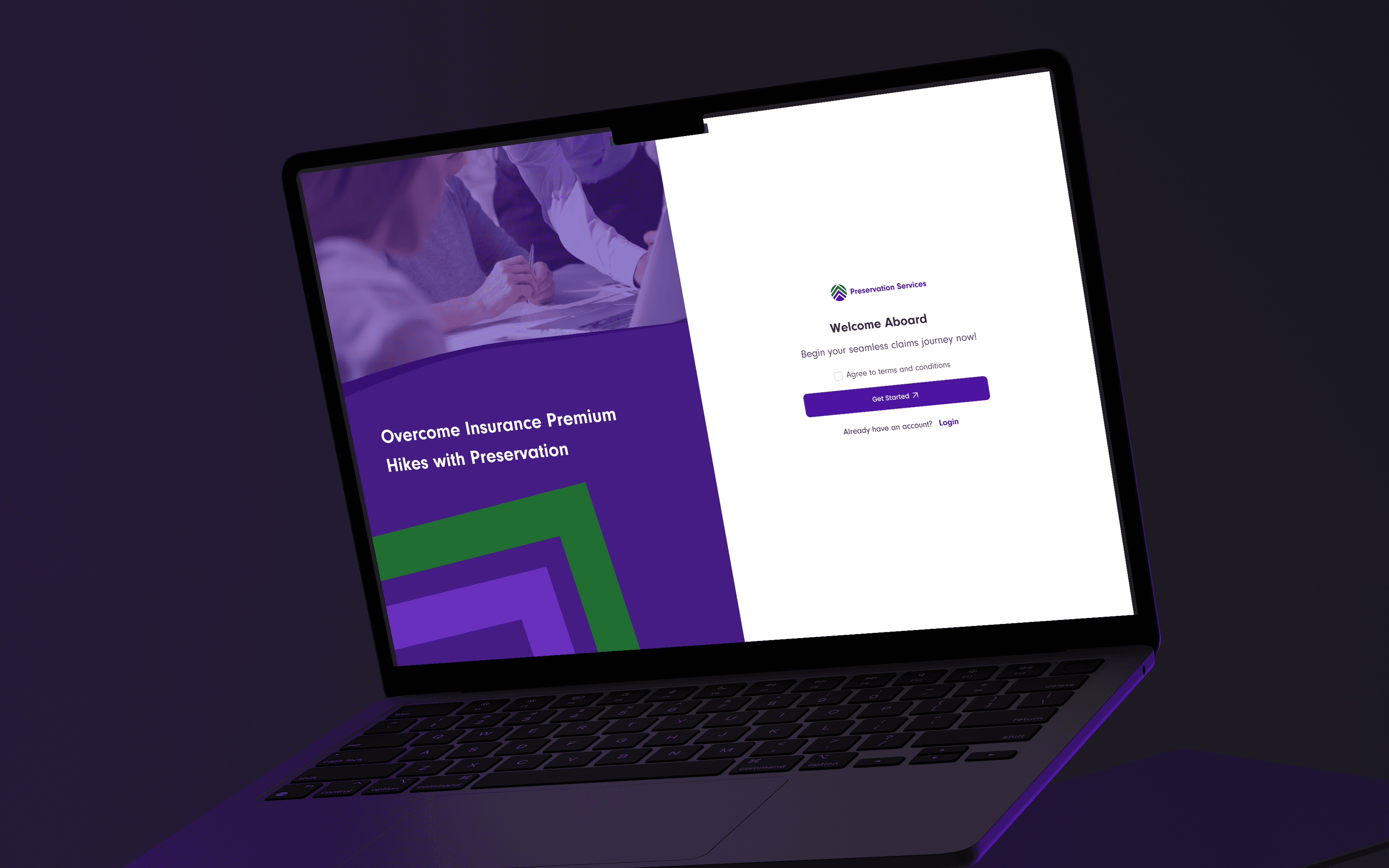
WHAT CONTRACTORS CAPITAL REPLACES
Instead of calls and emails to check on coverage or a claim, one portal where a builder can onboard, get verified, and manage their entire claim lifecycle.
2
user roles a company can register: Primary + Secondary contact, sharing one set of permissions
4
stages from onboarding submission to an activated, logged-in account
30 days
a trusted device skips repeat identity verification
A Captive Program With No System a Builder Could Log Into
Preservation Services runs captive insurance processing for home builders: a model where a group of builders pool risk under one program rather than buying it individually. Every company in that program needs a policy on file, a way to prove a covered loss, and a way to see where their claim stands. Before Contractors Capital, none of that lived in a system a builder could log into themselves.
Contractors Capital gives each company up to two authorized users, a mandatory Primary contact and an optional Secondary contact with identical permissions, in a single portal to complete onboarding, get verified, and manage their coverage and claims going forward.
PROBLEM STATEMENT
Coverage and claims lived in phone calls and inboxes, not a system, so nothing about a company's status, history, or authority to act was ever verifiable in one place.
Onboarding flow design: company and policy details, document upload, identity verification, review & submit.
Authentication & account security: shared login for users/admins, OTP-based 2FA, trusted-device handling, password reset.
Claims workflow: filing, editing, deleting, filtering, and document management for claims, plus the admin approve/reject flow.
Dashboard & analytics: summary cards, filterable timeline, coverage details, and pending-task nudges.
Built for the Builder Filing a Claim, and the Admin Reviewing It
- Who
- Home builders and contractors covered under Preservation Services' captive insurance program, specifically the Primary and optional Secondary contact at each company, and the Preservation Services admins who review onboarding requests and claims.
- Why
- Before Contractors Capital, a builder had no way to see their own coverage or claim status without contacting Preservation Services directly. Onboarding a new company, verifying who was authorized to act for it, and filing a warranty claim were all manual, hard to audit, and gave leadership no aggregate view of claim volume or risk.
- What
- A self-service web portal: a guided company-onboarding flow with document upload and e-signature, secure shared login with OTP-based two-factor authentication, a claims dashboard with live status and coverage summaries, and a full claim-filing workflow with proof-document management, plus an admin layer to review and approve or reject both onboarding requests and claims.
Two People Standing on Either Side of Every Claim
Every interaction in Contractors Capital runs between two roles: the builder who needs coverage and answers, and the admin who has to verify and approve.
Primary / Secondary Contact
Preservation Services Admin
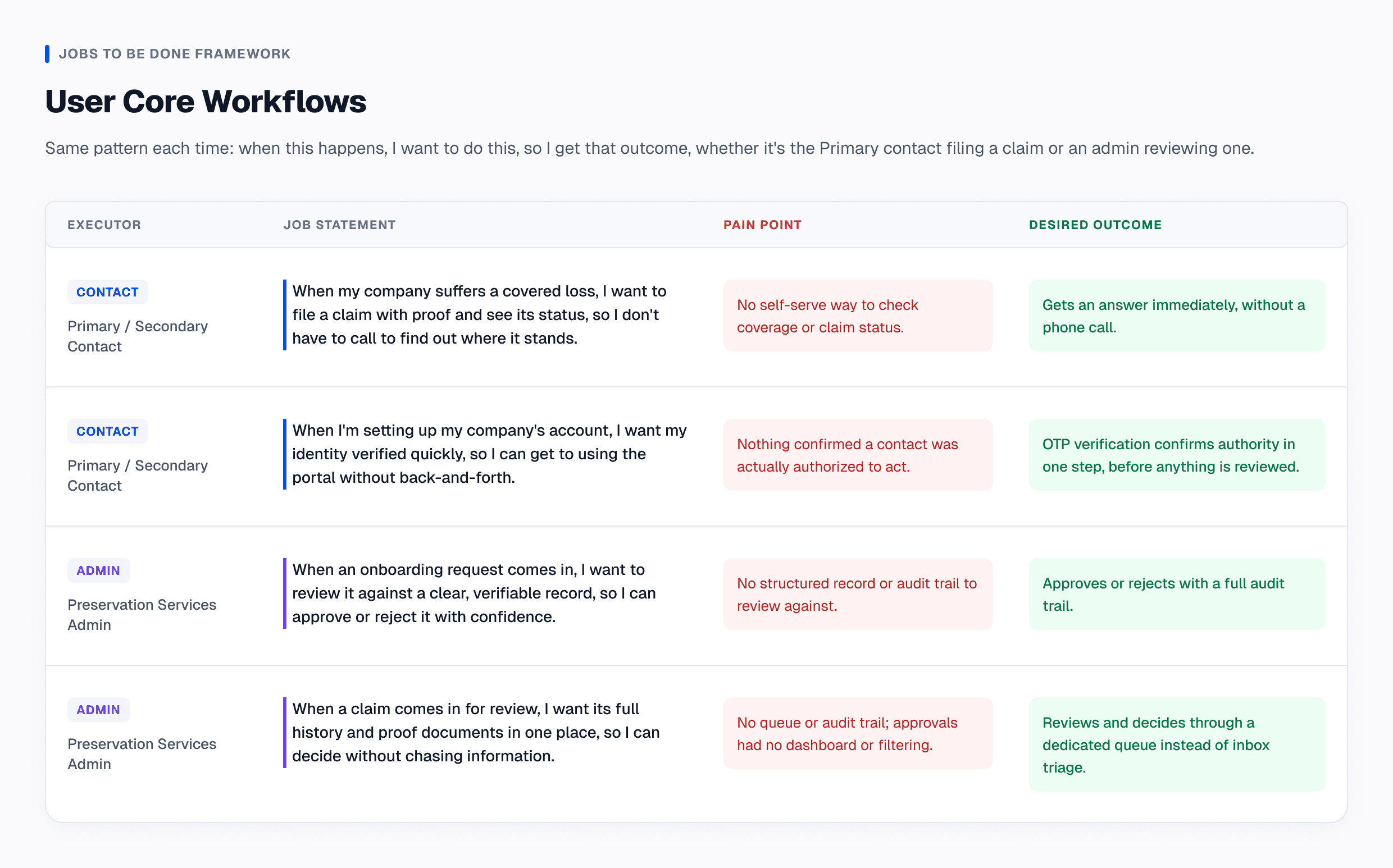
Before · Calls and Email
Coverage Nobody Could See, and Nothing to Prove It
Five gaps stood between a builder in the program and any confidence in where their coverage or claim actually stood.
No single, verifiable record per company
Company, policy, and contact details had no consistent, structured place to live before a company could be considered covered.
No self-serve visibility into coverage or claim status
A builder had no way to check where things stood without contacting Preservation Services directly.
No verified chain of authority
Nothing confirmed that the person acting for a company on claims was actually authorized to.
No structured claim record
Claim amount, date of loss, description, and proof documents weren't captured consistently or filterable in one place.
No queue or audit trail for admins
Onboarding and claims approvals had no dashboard, filtering, or record of who approved what and when.
THE GUIDING QUESTION
What if a builder could onboard, get verified, and manage their entire claim lifecycle without a single phone call to Preservation Services?
Six Decisions That Made Coverage Self-Serve and Verifiable
Each decision closed a specific gap between what a builder needed to know and what the old process could actually confirm.
Two-user company model: Primary mandatory, Secondary optional, identical permissions.
Warranty management isn't a single point of failure: a company isn't blocked if one contact is unavailable, without needing a complex roles system.
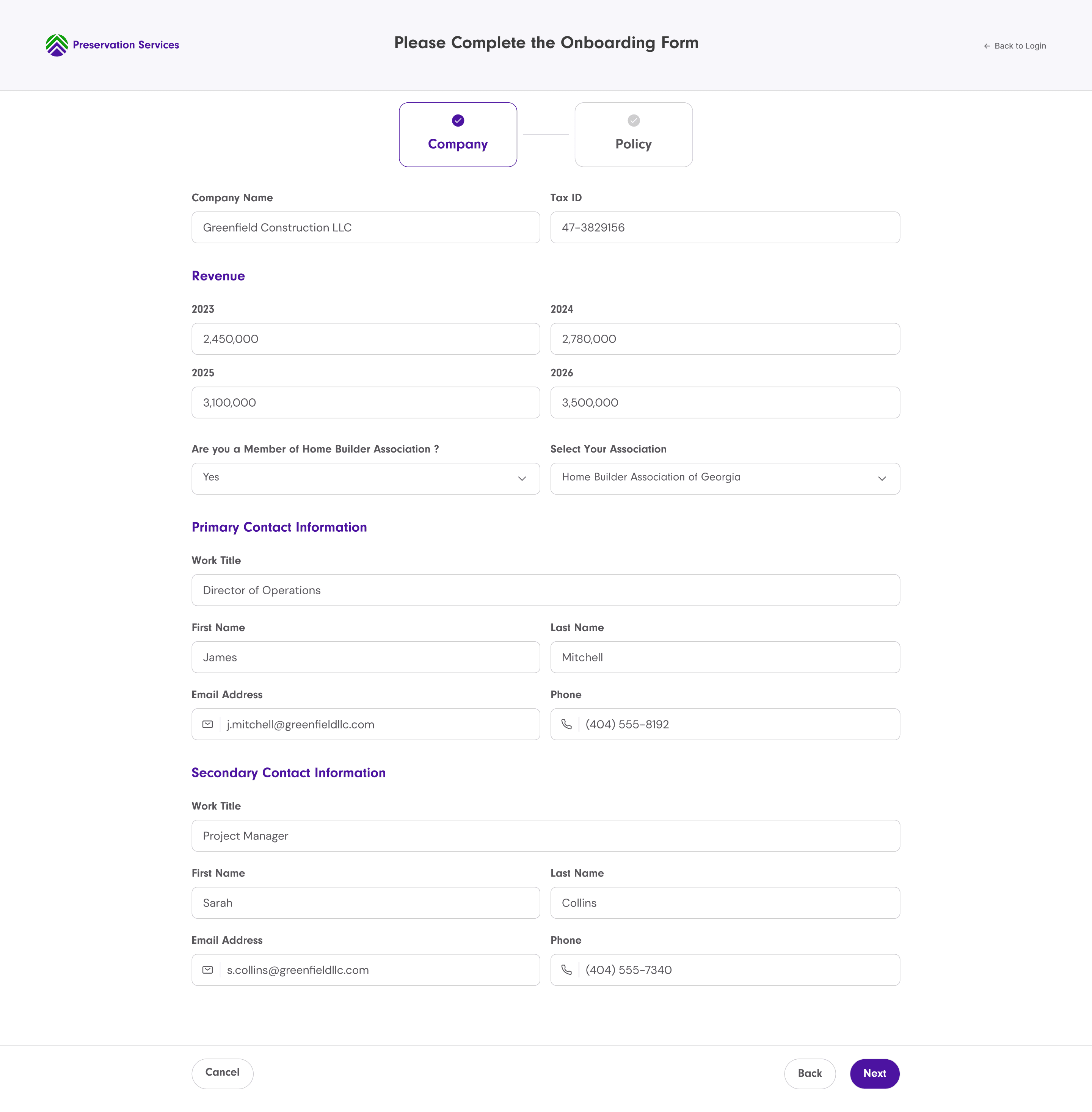
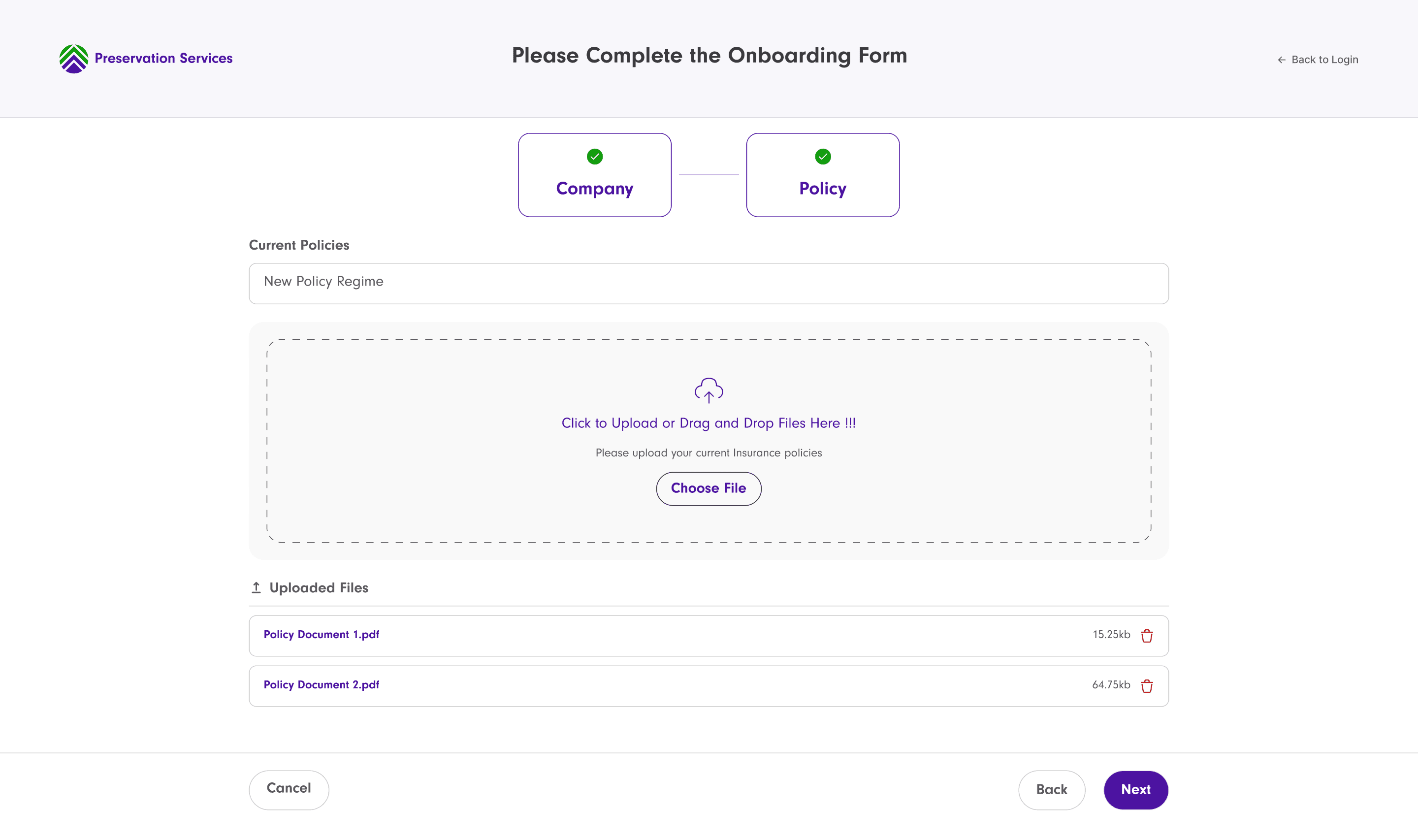
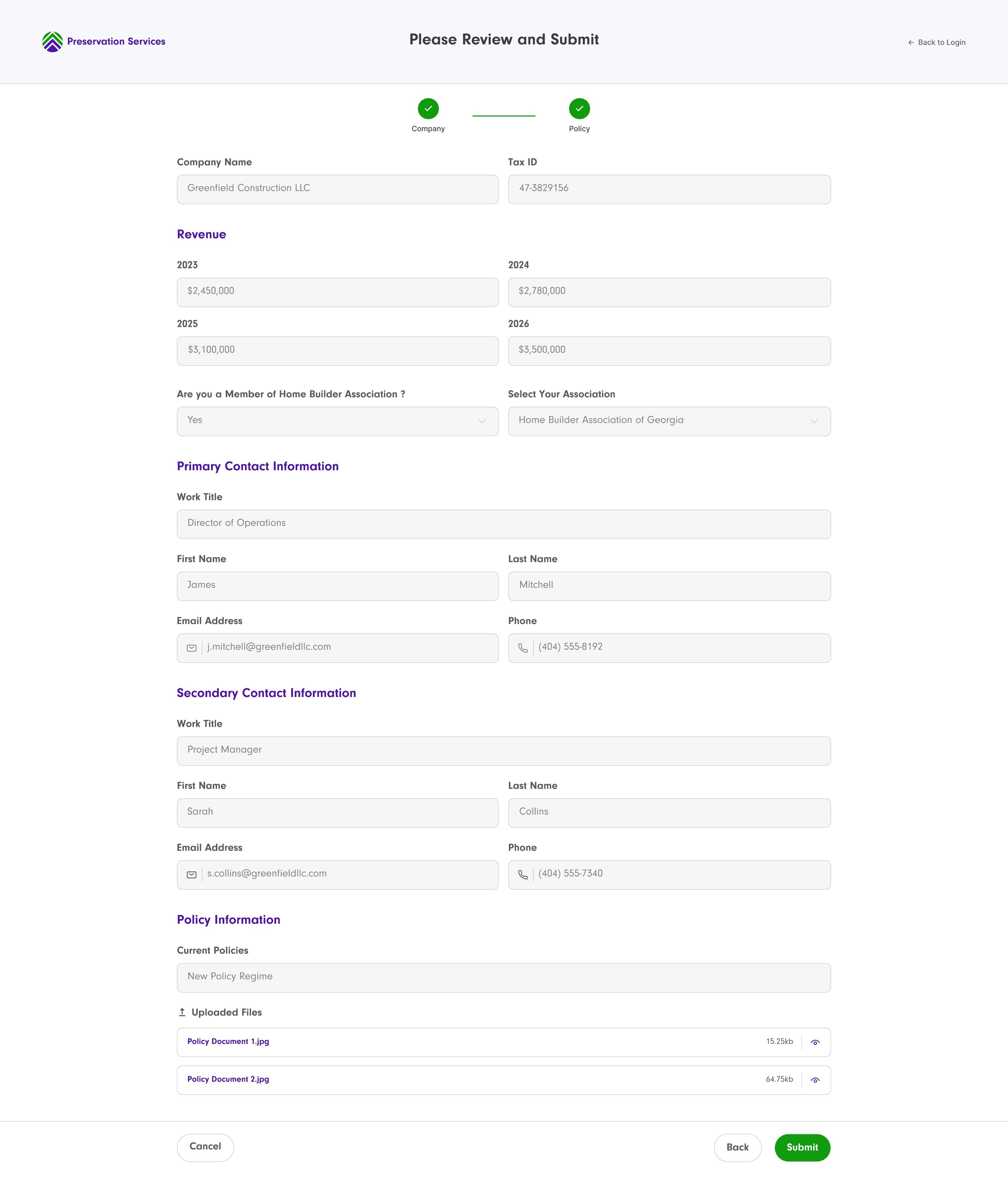
Guided, three-step onboarding (Company → Policy → Review & Submit) with a dedicated review screen before submission.
Catches incomplete or incorrect entries before they reach an admin, instead of after.
Mandatory OTP email verification for the Primary contact during onboarding.
Confirms the person who will control the company's claims is real and reachable before any request is even reviewed.
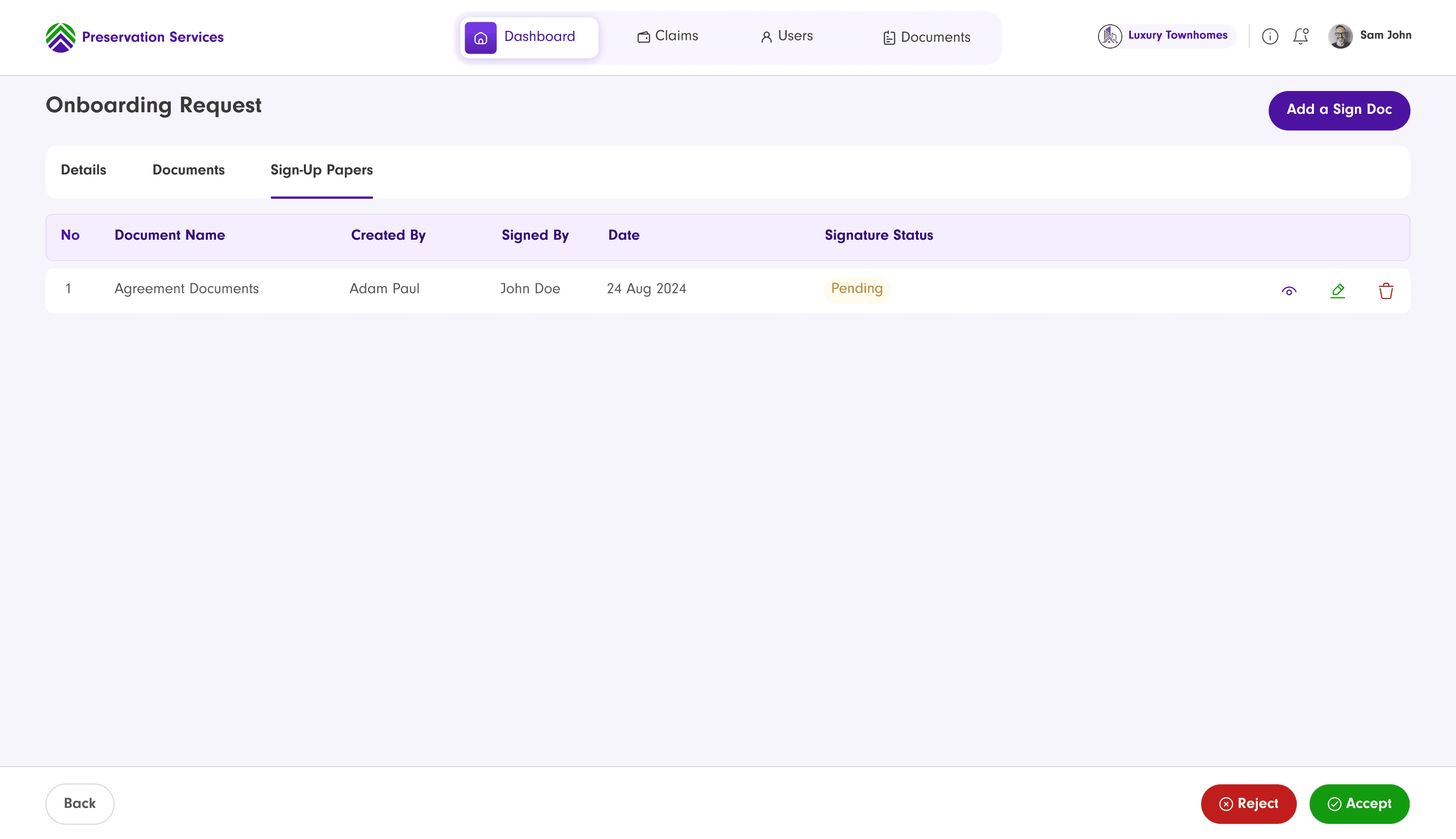
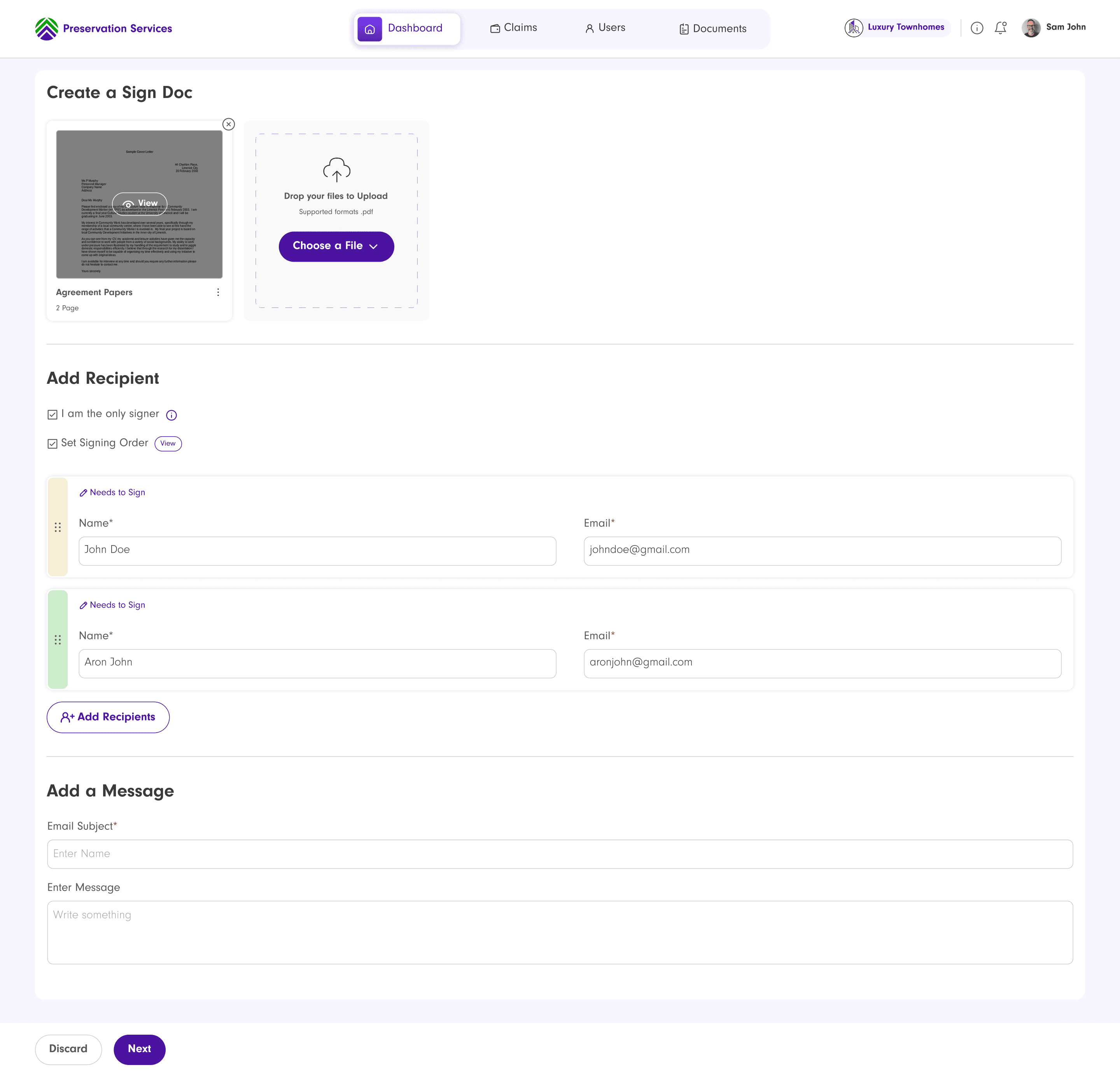
Admin-then-user e-signature sequencing on legal documents.
Nobody could unilaterally treat onboarding as complete: approval, admin sign-off, and user sign-off all have to happen in order.
Shared login with role-based routing, plus OTP-based 2FA on new devices and a 30-day trusted-device option.
One simple mental model (one login, one password) without trading away security. Trust is earned per-device, not permanent.
Dashboard built around summary cards, a filterable timeline, coverage details, and pending-task nudges.
Surfaces what needs attention (an unfinished claim, a missing document) instead of requiring the user to go looking for it.
After · Contractors Capital
| Loss Occurs | Checking Coverage | Filing a Claim | Getting a Decision | |
|---|---|---|---|---|
| Touchpoints | Dashboard, no call needed. | Dashboard summary cards. | Claims tab, file-claim flow. | Dashboard timeline and notifications. |
| Customer process | Logs in and opens the dashboard to check coverage. | Views claim counts, approved amount, and coverage at a glance. | Files a claim with proof in one guided flow. | Tracks the claim from Pending to Approved or Rejected. |
| Motivations | Understand coverage and next steps. | Confirm coverage and decide whether to file. | Get the claim recorded accurately, the first time. | Get a clear, timely answer. |
| Emotions | Reassured | In control | Confident | Reassured |
| Barriers | None. Coverage and policy details are visible immediately. | None. Self-serve, no call required. | None. OTP/2FA-verified identity confirms authority to act. | None. Admins review through a dedicated queue with a full audit trail. |
Filing a Claim, End to End
Claims are the recurring use case, so the primary flow. Onboarding is the one-time path a company completes before any of this is possible.
Company Onboarding to Activation
A one-time flow every company completes before they can log in and use the portal.
Onboarding, Authentication, and Claims as One Portal
Every screen exists to answer one of three questions: is this company who they say they are, what's the state of their coverage, and where does a specific claim stand.
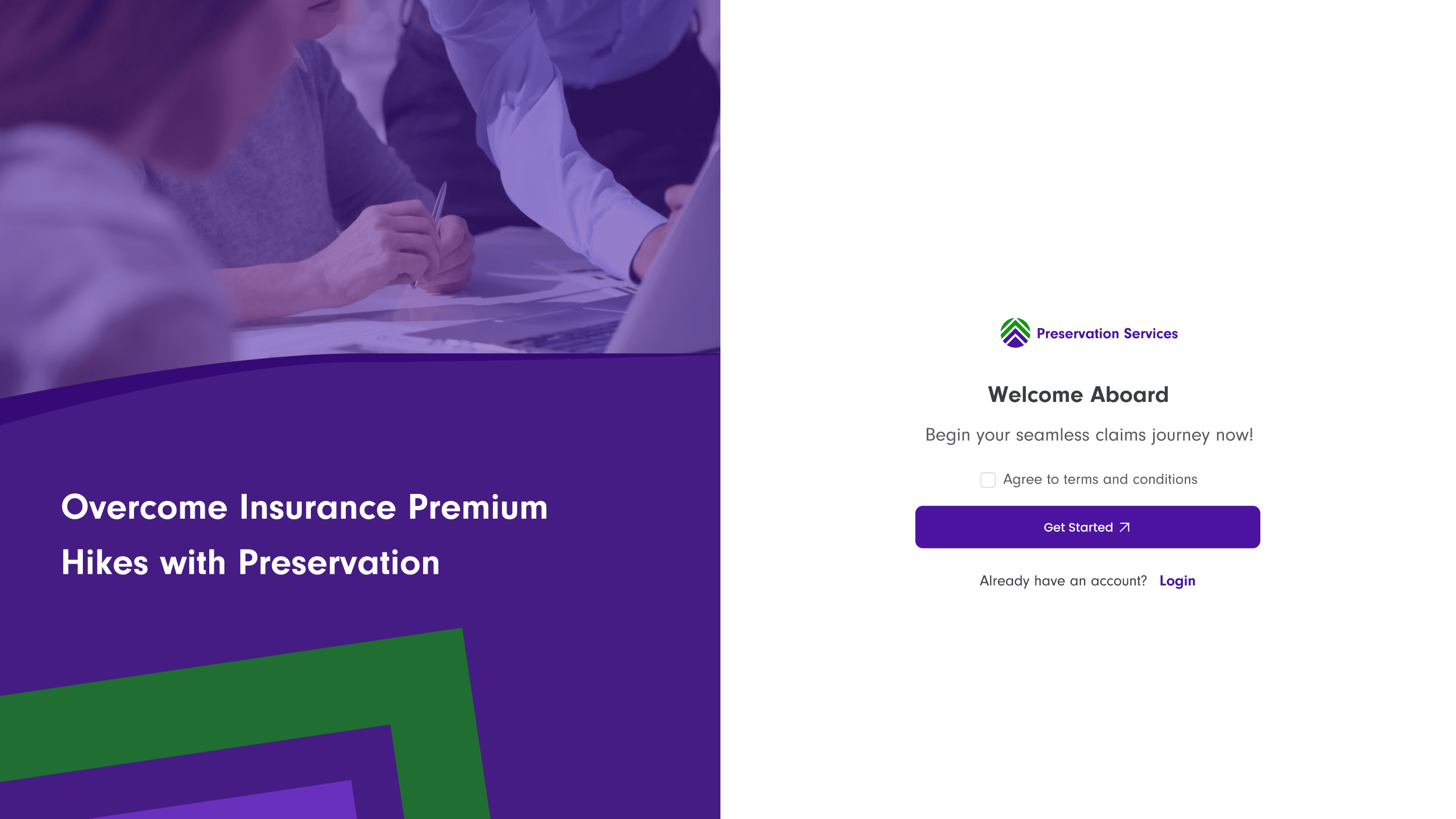
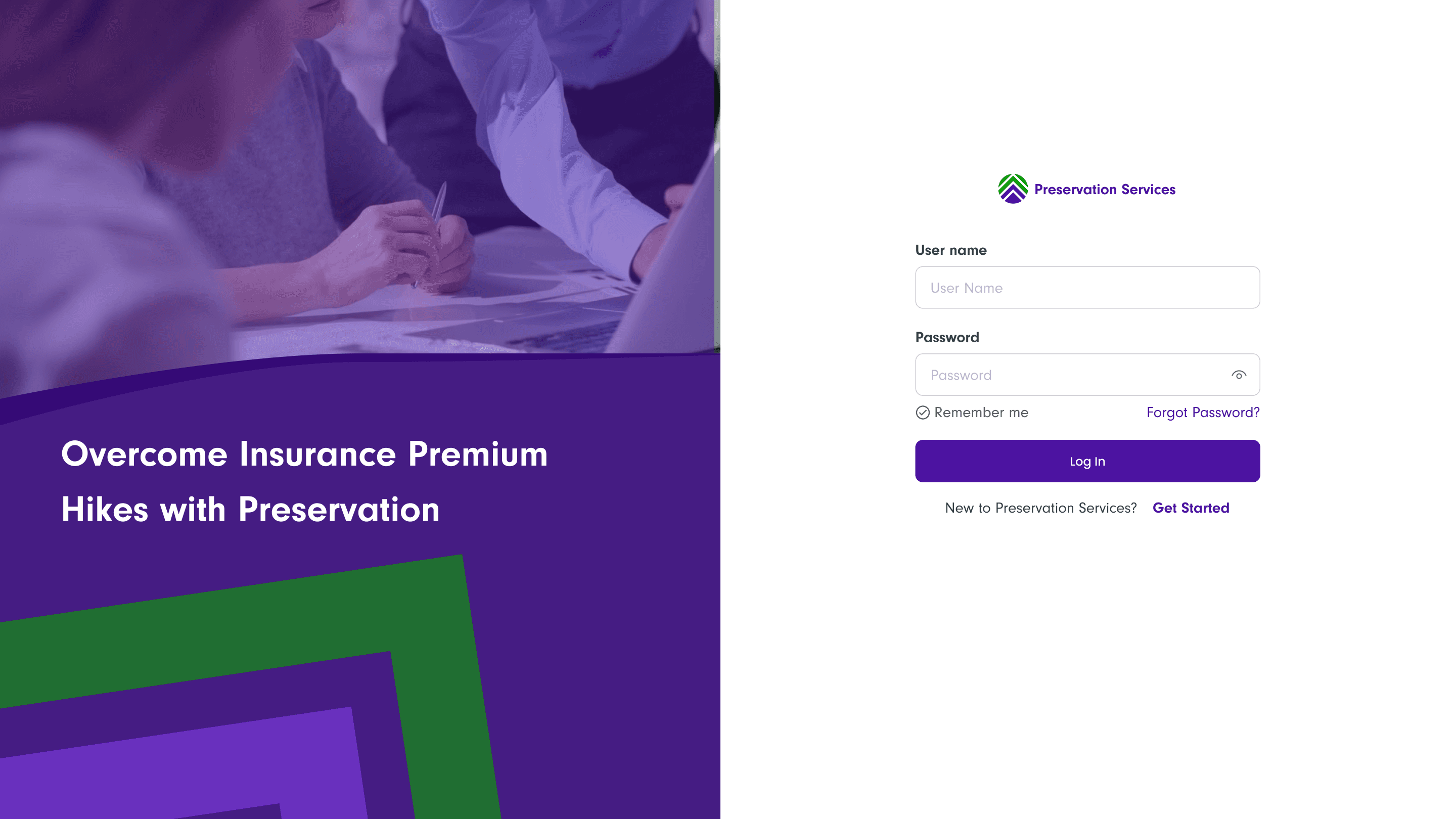
Get Started and Login
A public entry point with email/password login and a "Get Started" link for new companies, the only two ways into the product.
Onboarding Form
Company details, policy proof, and Primary/Secondary contact information, each its own step before the Review & Submit screen.
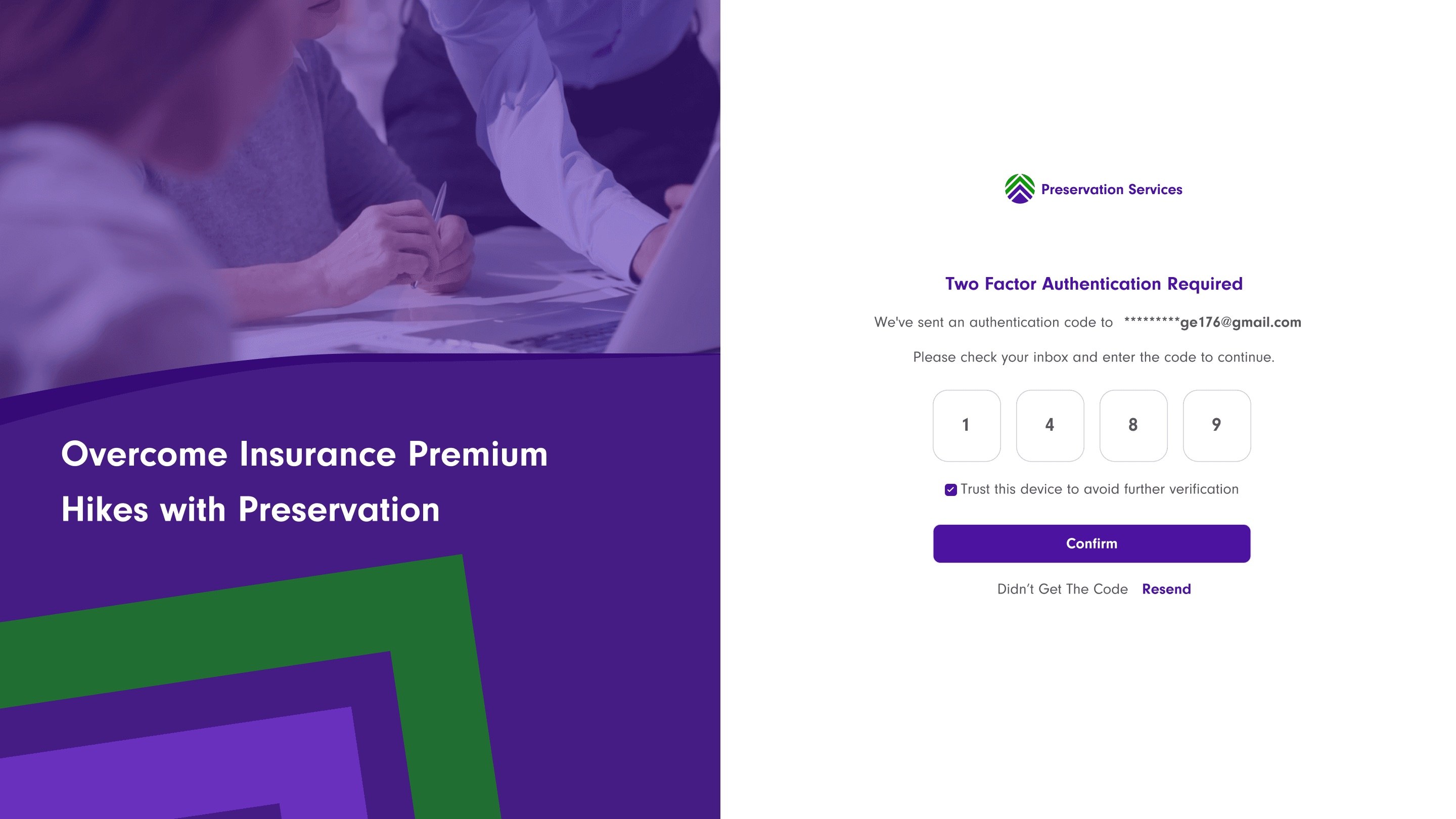
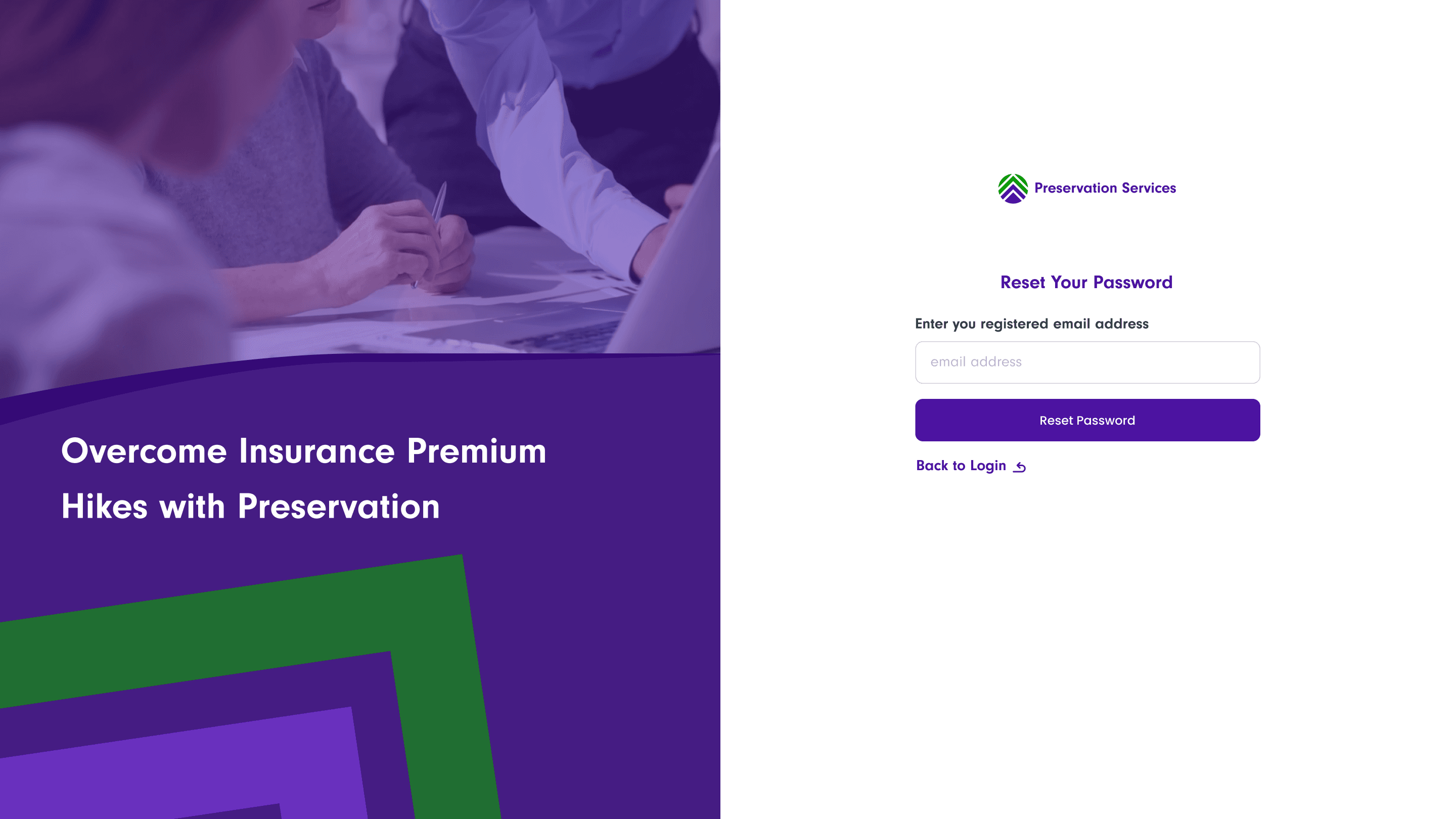
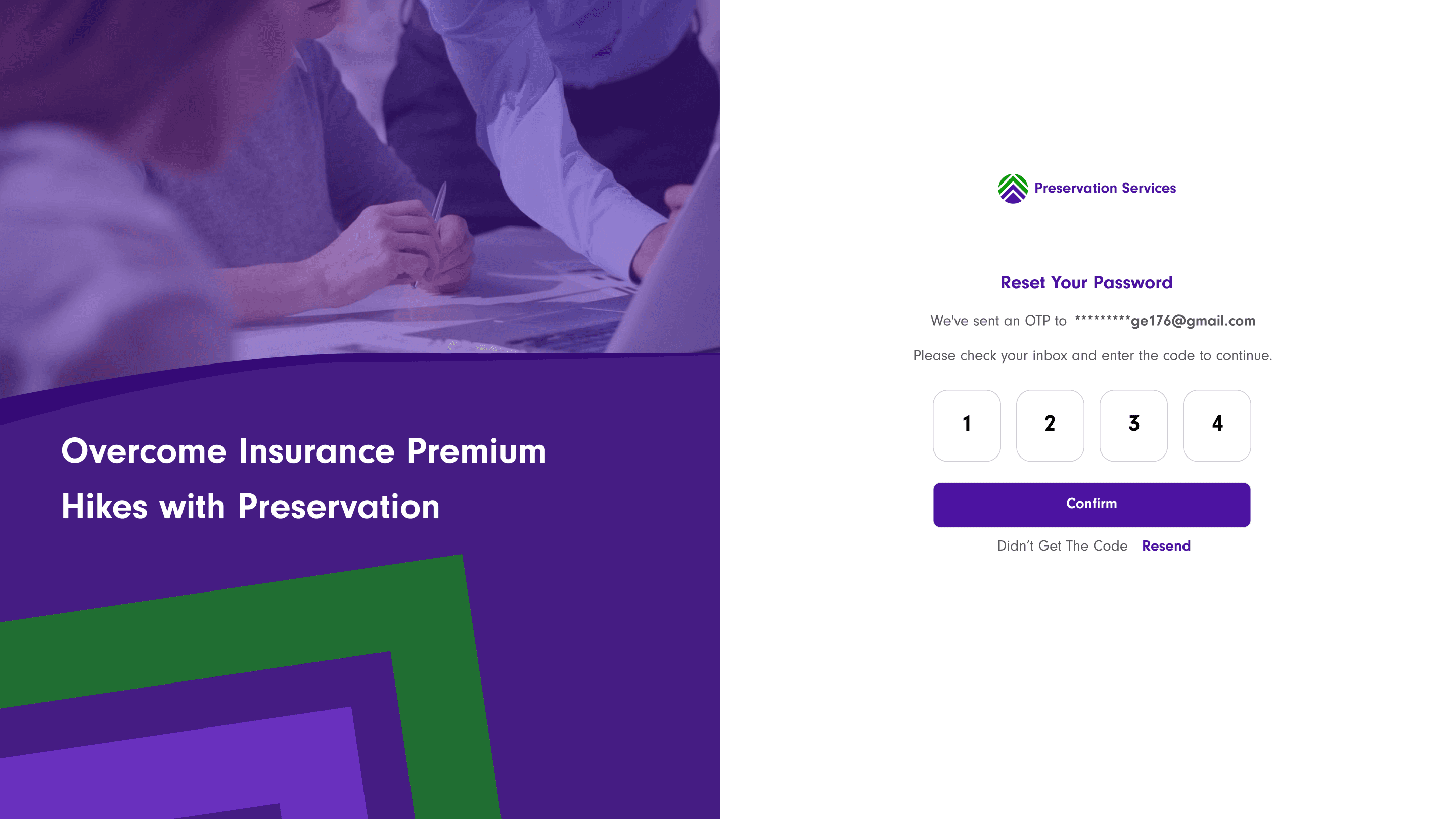
Shared Login, OTP, and Password Reset
One login page routes users and admins to their own portal. New or untrusted devices require a 6-digit email code, with a 30-day trusted-device option.
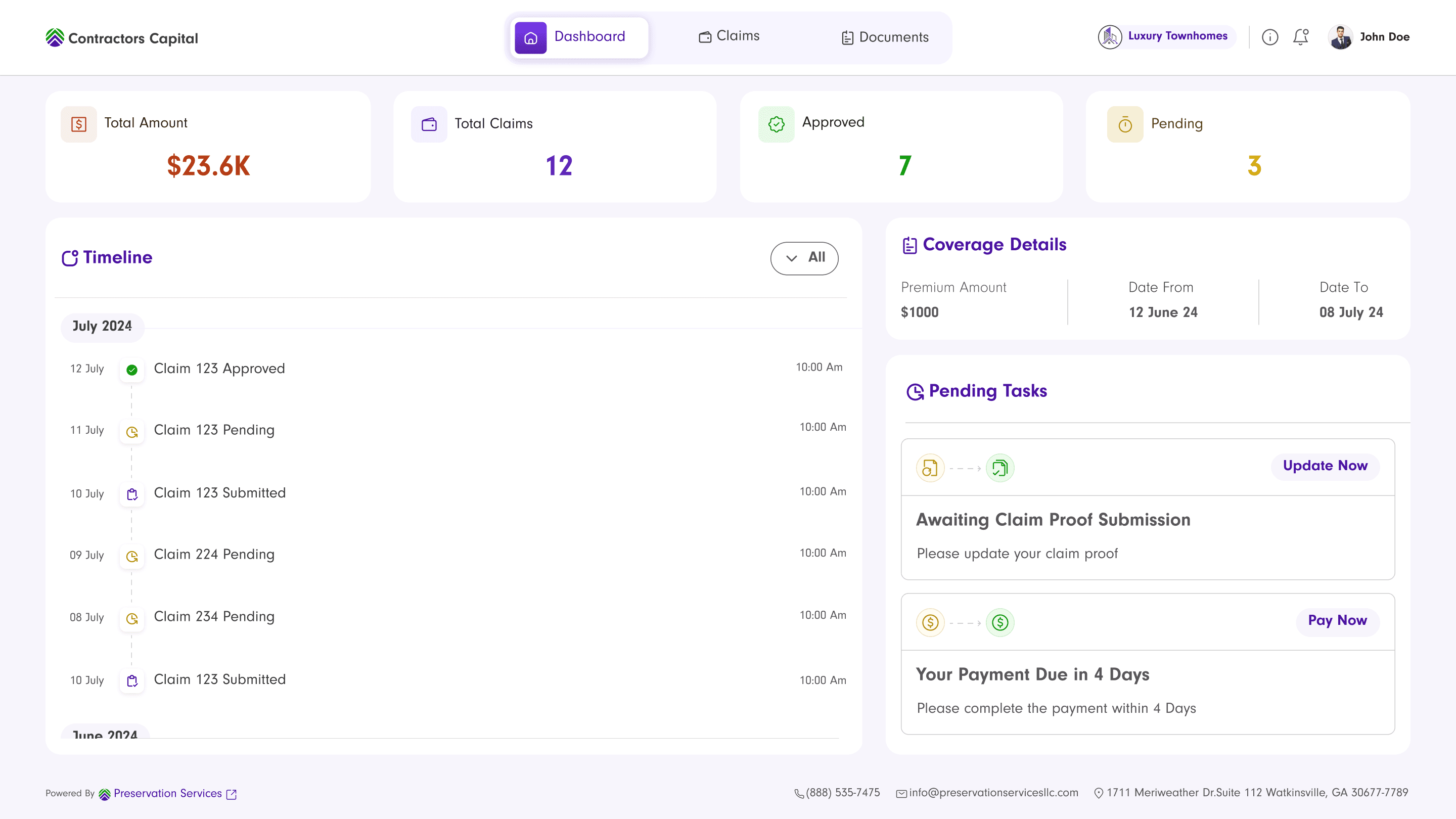
Summary Cards, Timeline, and Coverage
Approved claim amount, total claims, approved and pending counts, a filterable timeline, coverage details, and pending-task nudges for anything missing: a missing proof document or a missing company logo.
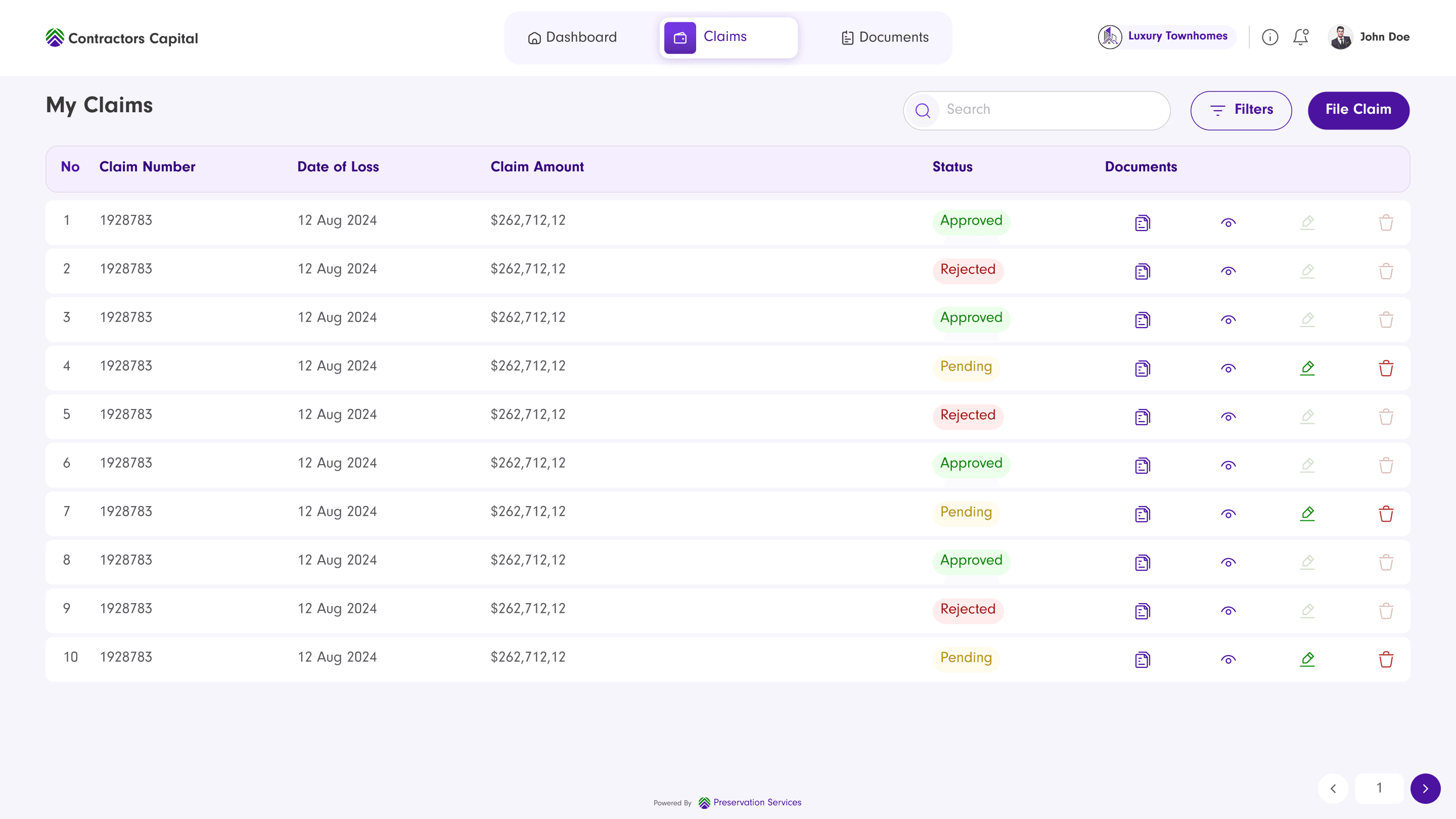
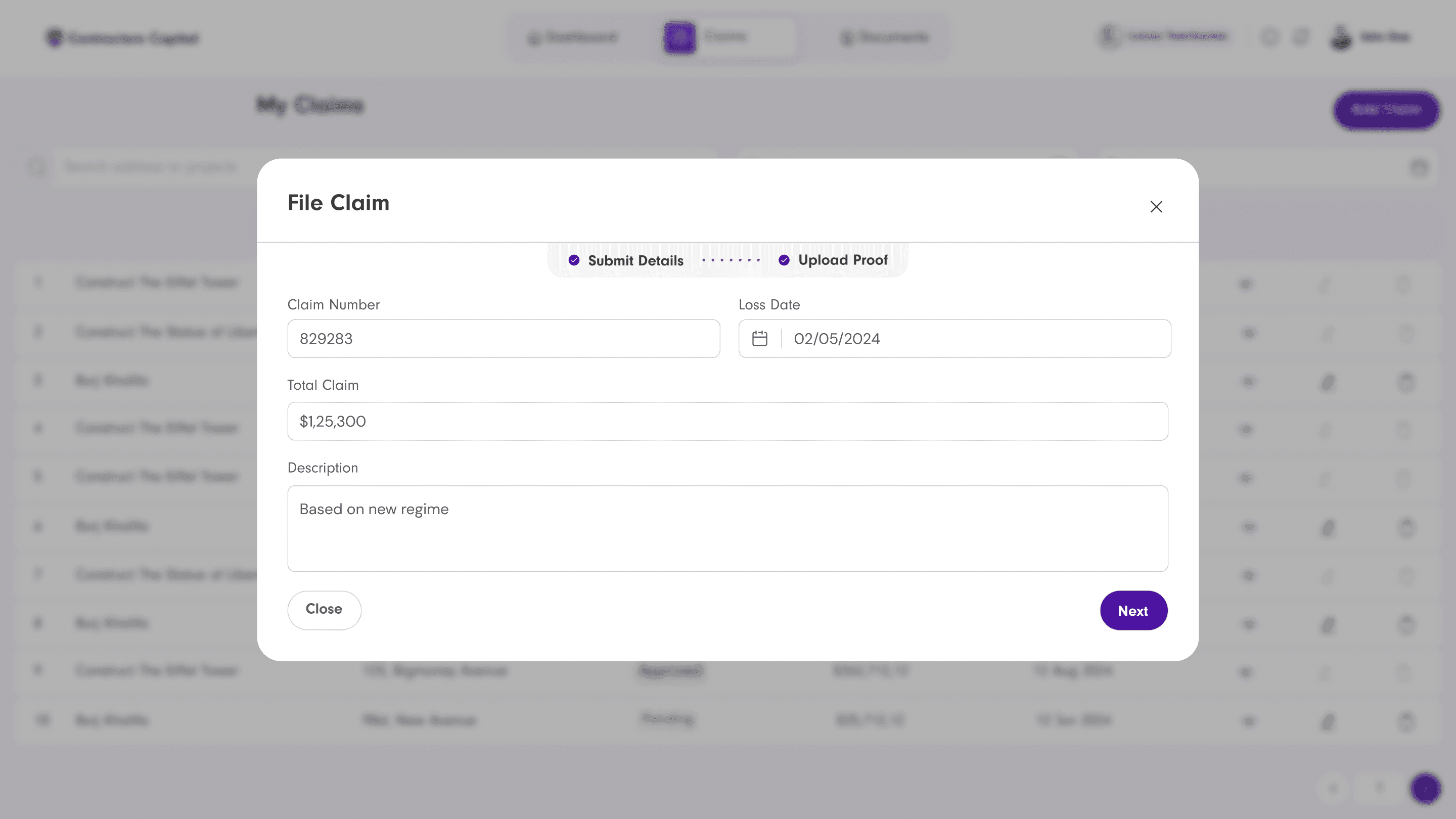
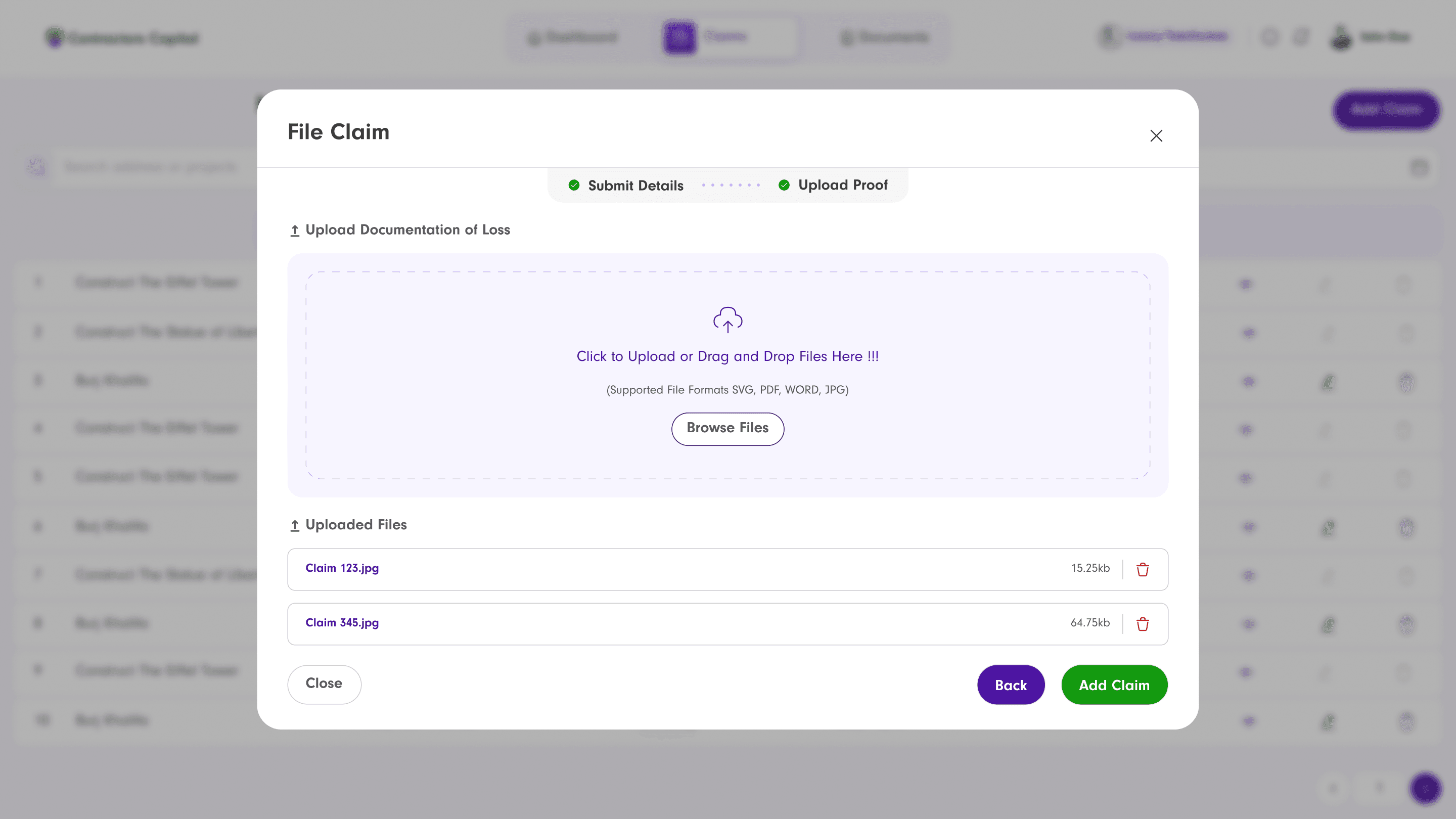
Filing, Filtering, and Managing a Claim
A claims table with quick actions, a two-step filing modal, and a details view that stays editable only while a claim is Pending.
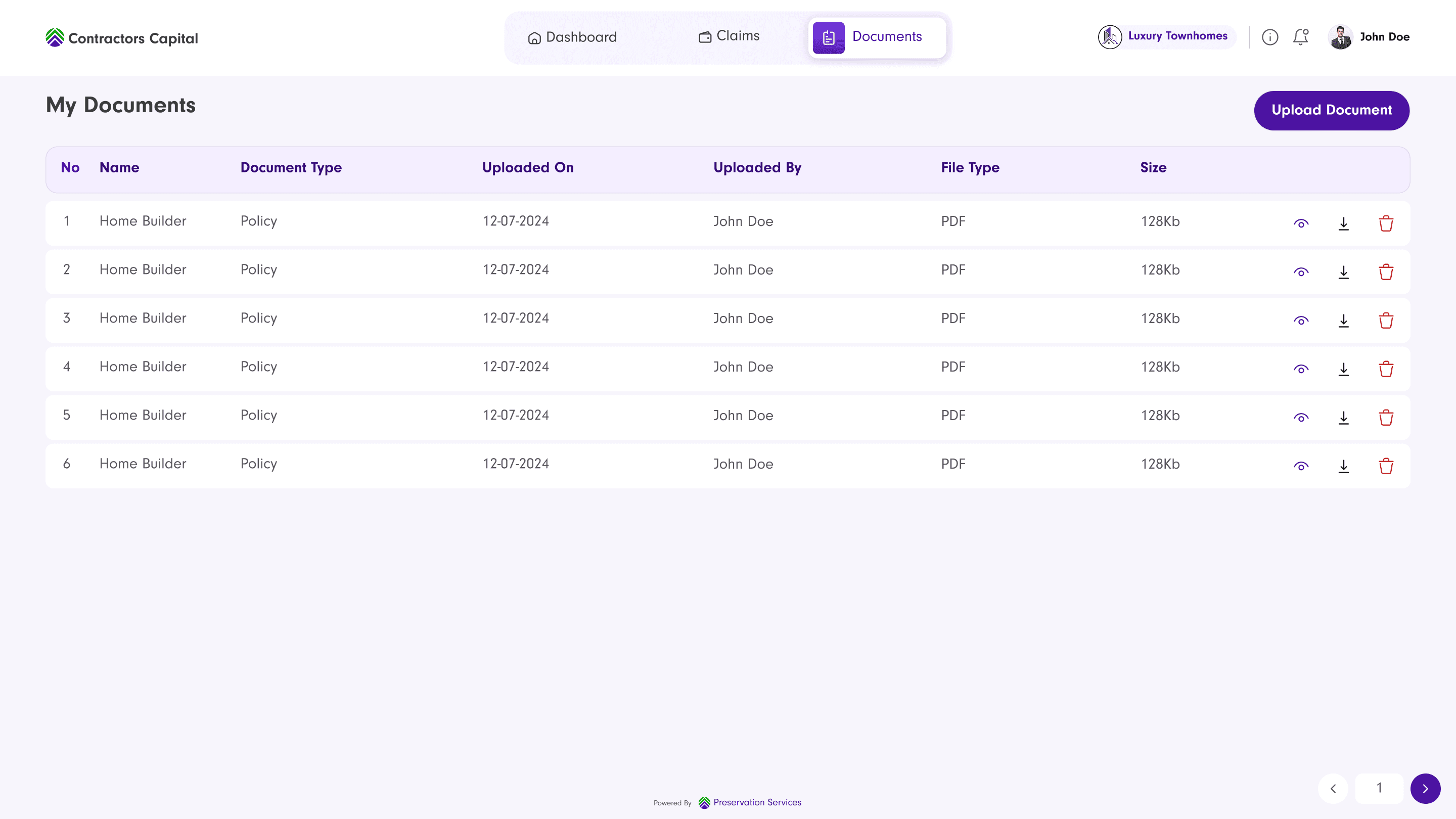
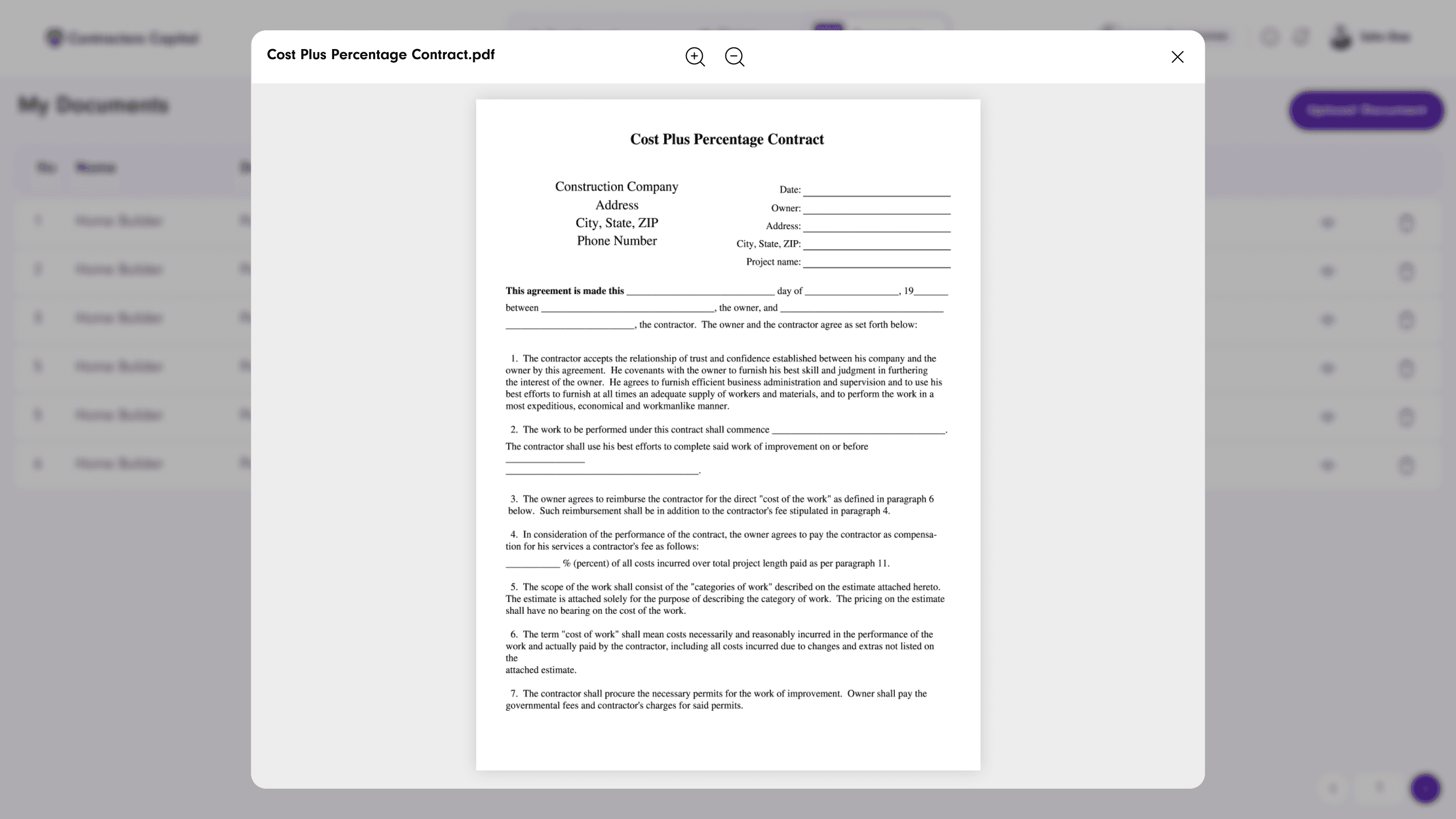
Every Document in One Place
A dedicated Documents tab lists every file uploaded across onboarding and claims, with a zoomable preview instead of a forced download.
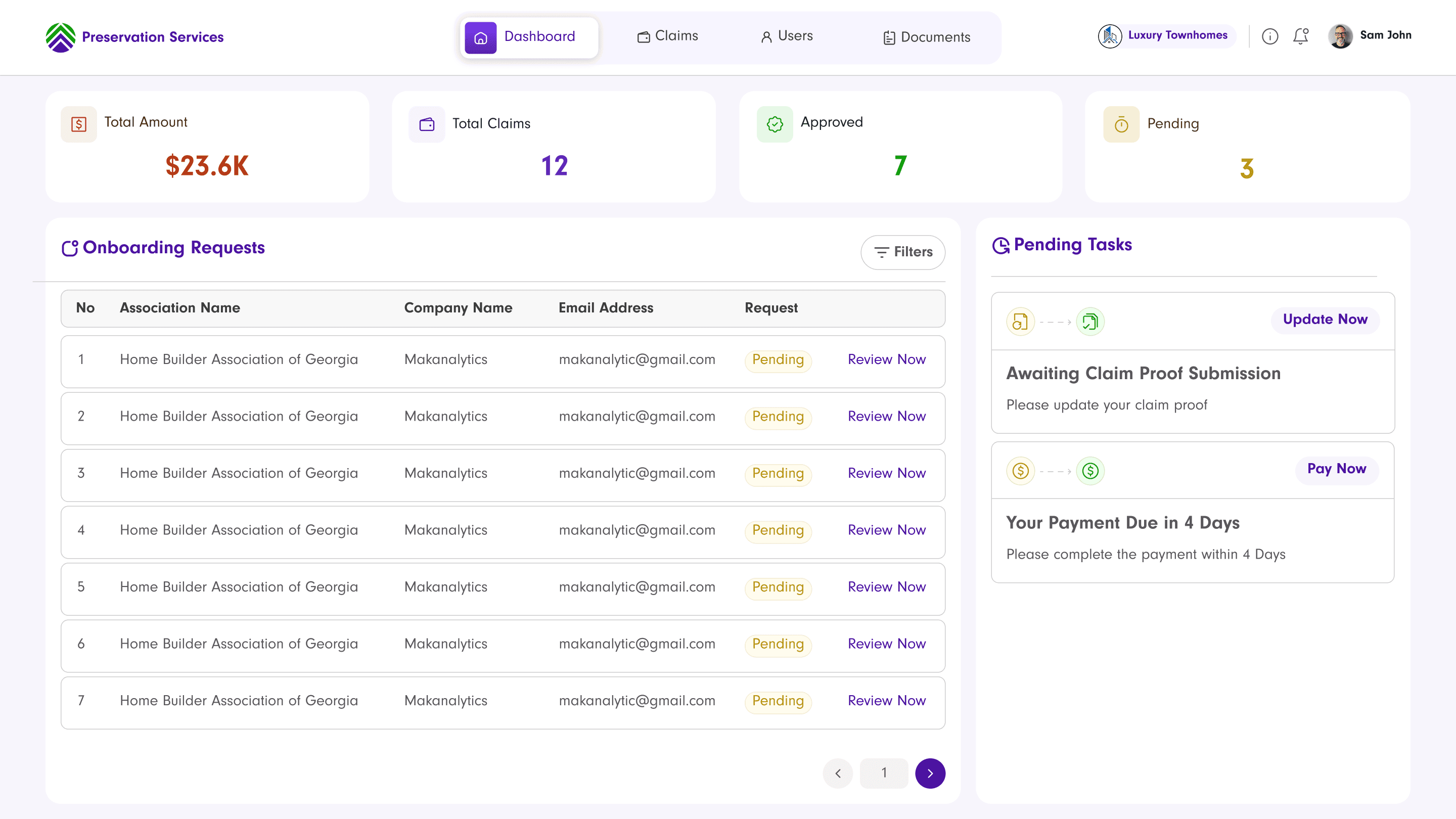
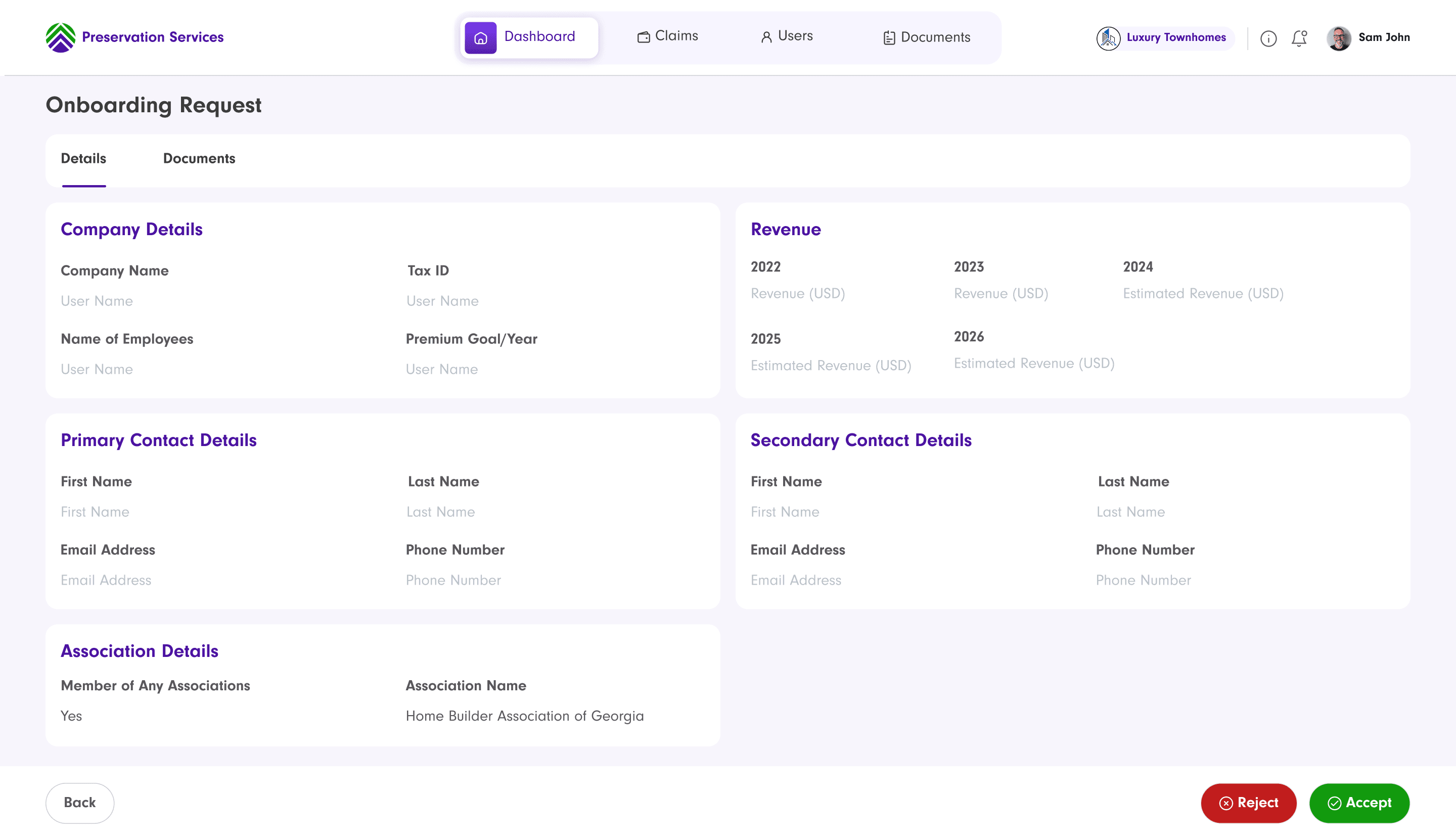
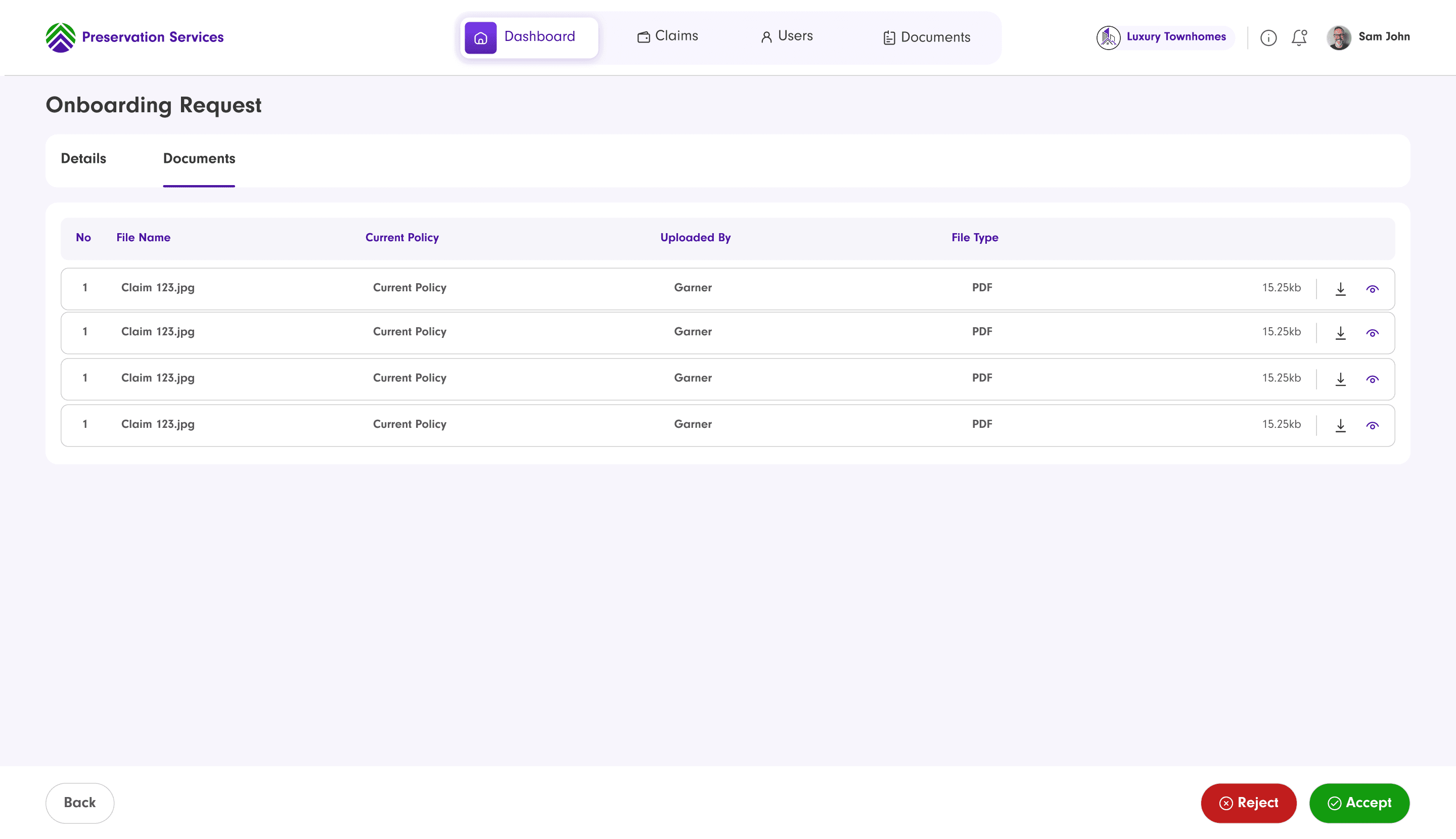
Admin Dashboard and Onboarding Approval
Admins get their own dashboard with a dedicated onboarding review queue, plus a detail view to accept or reject each request against its company details and uploaded documents.
Sign Doc Request
The admin-then-user signature sequence in practice: an admin creates and sends the sign doc, then tracks its status until both parties have signed.
From Phone Calls to a System Builders Trust
35 companies onboarded since launch
Each with a verified Primary contact and a structured record on file.
45% fewer manual status-check calls and emails
Coverage and claim status are now self-serve instead of requiring a call to Preservation Services.
152 claims filed through the portal
Each one structured, filterable, and tracked from Pending to a decision.
Zero account-related security incidents
Since the 2FA and trusted-device rollout on new and untrusted device logins.
A review step before submission does most of the QA work for you
Splitting onboarding into Company → Policy → Contacts → Review & Submit meant most data errors got caught by the user, not an admin downstream.
Sequencing signatures enforces accountability without extra UI
Admin-signs-first, then user-signs isn't a permissions feature: it's a workflow decision that makes the approval chain impossible to skip.